19-Offline text to speech (TTS)
1. Concept Introduction
1.1 What is "TTS"?
TTS technology converts written text into human-readable speech output. It enables computers to "read" text aloud and is widely used in a variety of fields, including accessible reading, intelligent assistants, navigation systems, and educational software. Through TTS, users can hear natural, fluent machine-generated human voices, greatly improving the convenience and flexibility of information acquisition.
1.2 Overview of Implementation Principles
The implementation of a TTS system primarily involves the following key steps and technologies:
1. Text Analysis
2. Language Processing
3. Speech Synthesis
4. Sound Waveform Generation
With the advancement of artificial intelligence and machine learning technologies, especially the application of deep learning, TTS systems have not only significantly improved in accuracy but also made significant progress in naturalness and emotional expression, making machine-generated speech increasingly similar to human voices.
2. Code Analysis
Key Code
1. TTS Initialization and Invocation ( largemodel/largemodel/model_service.py )
[TODO]
2. TTS backend implementation ( largemodel/utils/large_model_interface.py )
[TODO]
Code Analysis
The text-to-speech (TTS) function is invoked by the LargeModelService node and implemented by the model_interface class. Its design uses parameter configuration to switch between different backend services.
3. Practical Operations
3.1 Configuring Offline TTS
To enable offline TTS, you need to correctly configure HemiHex.yaml and large_model_interface.yaml and ensure that the local model is correctly placed.
Open the main configuration file :
vim
~/yahboom_ws/src/largemodel/config/HemiHex.yaml
Modify/confirm the following key configurations:
model_service
:
#Model server node parameters
ros__parameters
:
language
:
'en'
#Large Model Interface Language
useolinetts
:
False
#Whether to use online speech synthesis (True to use online, False to use offline)
regional_setting
:
"international"
model_service
:
#Model server node parameters
ros__parameters
:
language
:
'en'
#Large Model Interface Language
useolinetts
:
False
#Whether to use online speech synthesis (True to use online, False to use offline)
regional_setting
:
"international"
Make sure useolinetts is set to False to use the local model.
Select "zh" for Chinese and "en" for English.
Open the model interface configuration file :
vim
~/yahboom_ws/src/largemodel/config/large_model_interface.yaml
vim
~/yahboom_ws/src/largemodel/config/large_model_interface.yaml
Confirm offline model path :
# large_model_interface.yaml
## 离线语音合成 (Offline TTS)
# English TTS model
en_tts_model
:
"/home/jetson/yahboom_ws/src/largemodel/MODELS/tts/en/en_US-libritts-high.onnx"
en_tts_json
:
"/home/jetson/yahboom_ws/src/largemodel/MODELS/tts/en/en_US-libritts-high.onnx.json"
# large_model_interface.yaml
## 离线语音合成 (Offline TTS)
# English TTS model
en_tts_model
:
"/home/jetson/yahboom_ws/src/largemodel/MODELS/tts/en/en_US-libritts-high.onnx"
en_tts_json
:
"/home/jetson/yahboom_ws/src/largemodel/MODELS/tts/en/en_US-libritts-high.onnx.json"
3.2 Start and test the functionality
Start the TTS node : Run the following command:
ros2 launch largemodel tts_only.launch.py
ros2 launch largemodel tts_only.launch.py

Send the text to be synthesized : Open a new terminal and run the following command to publish a voice message:
ros2 topic pub
--once
/tts_text_input std_msgs/msg/String
'{data: "Speech synthesis test successful"}'
ros2 topic pub
--once
/tts_text_input std_msgs/msg/String
'{data: "Speech synthesis test successful"}'
Test : If everything went well, you should hear the robot say "Speech synthesis test successful" in a synthesized voice through your speakers.
4. Common Problems and Solutions
4.1 Playback Issues
Issue 1: The program runs normally without errors, but no sound is heard.
Solution :
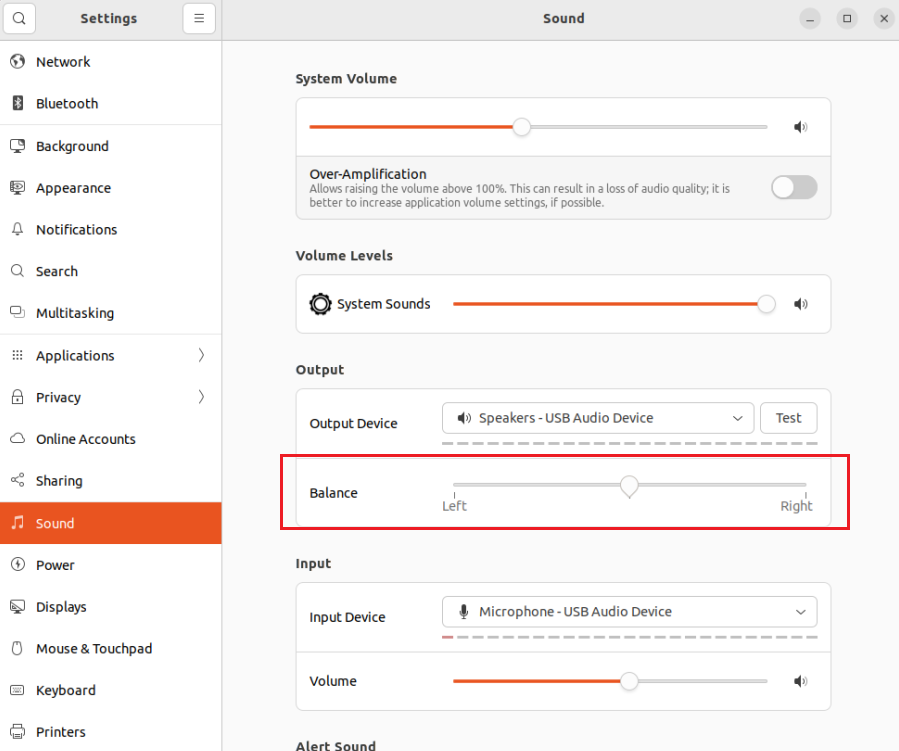
Check the audio output : Confirm that your system audio output device is selected correctly and the volume is not muted. Try playing a standard music file to test the hardware.
In the Sound settings, set the Balance to the middle position.